
Design system
Shared classes.
Give elements a class like “card” and style the class once. Every element with that class across the site follows.
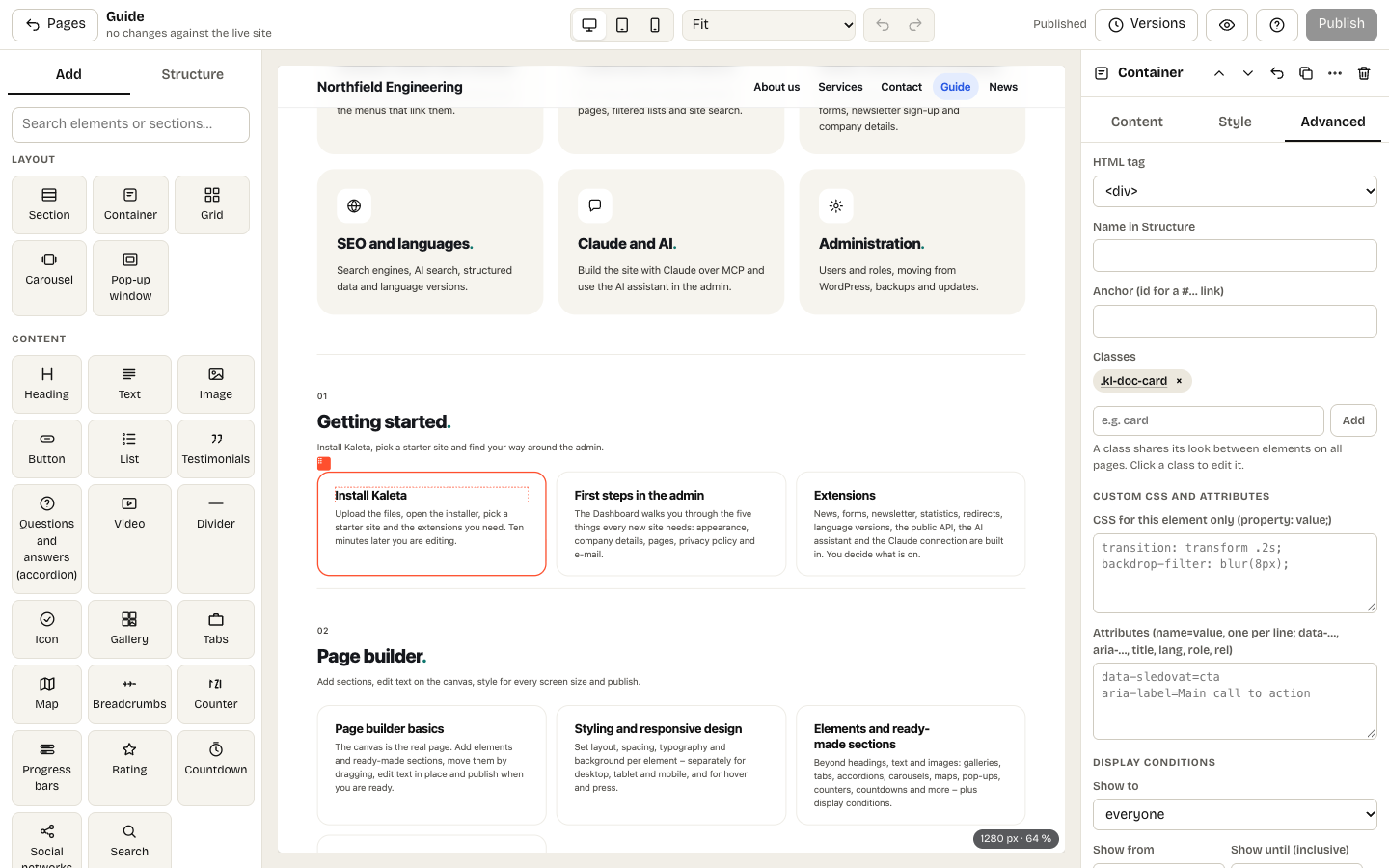
The Advanced tab: classes of the selected element
A class is a named style shared across the site. It is the right tool whenever the same look repeats – cards, labels, a dark band.
Using a class
- Select an element and open the Advanced tab.
- Under Classes type a name (for example
card) and click Add. Existing classes are offered as you type. - Click the class to edit its style. The panel shows where the class is used; save it and the change applies to every element with that class on every page – straight away, without publishing.
A class has its own desktop, tablet, mobile and hover states. An element can have several classes, and its own style still wins over the class. Only administrators edit shared classes; editors can attach existing ones.
The Advanced tab also sets an element anchor (an id for #links), extra CSS and attributes of that one element.
Classes and Claude
Claude can list and save classes over MCP (list_classes, save_classes) from ordinary CSS rules such as .card { … }, .card:hover { … } and @media (max-width: 767px). A class change applies to the whole site straight away.