
Claude and AI
Connect Claude over MCP.
Switch on the Claude connection, add your site as a connector in the Claude app or in Claude Code, and approve access on your own site.
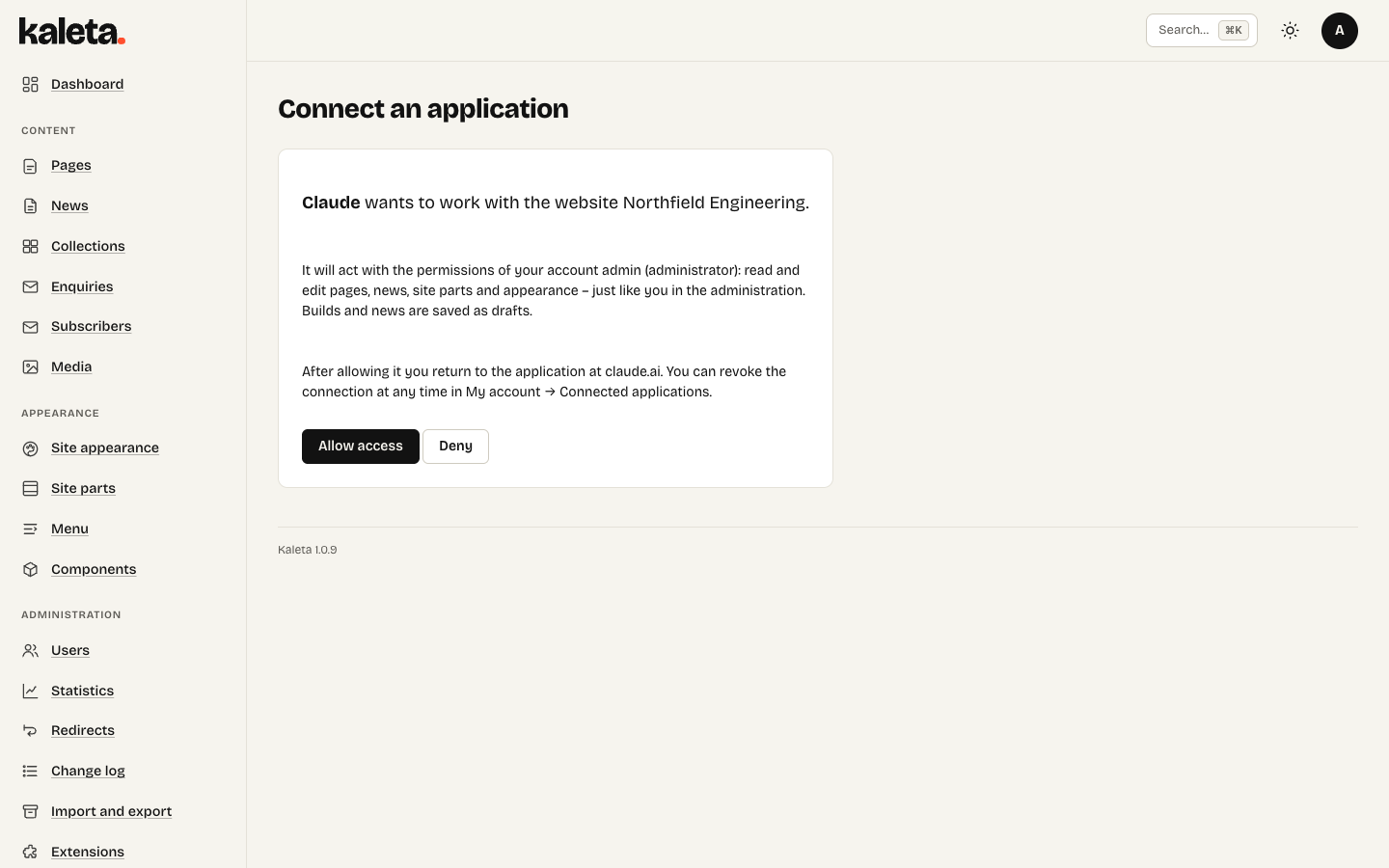
Allowing Claude access on your own site
Enable Claude connection (MCP) under Extensions. Your site then offers an MCP server at /mcp.
In the Claude app (recommended)
- In Claude open Settings → Connectors and add a custom connector with the address
https://your-site.com/mcp. - Claude sends you to your site to sign in and allow access (OAuth). Nothing to copy.
- Connected apps are listed – and can be disconnected – in My account.
This needs the site on HTTPS in the domain root.
In Claude Code
Run the command and confirm access in the browser:
claude mcp add --transport http kaleta https://your-site.com/mcpAlternatively, create an access token under My account and add --header "Authorization: Bearer <token>".
If the site requires two-factor sign-in, the connection works only for accounts that have it switched on.