
Administration
Backups, updates and site export.
Daily automatic backups when something changed, encrypted off-site copies of the database (opened only by your recovery key) and copies of the media over FTPS or S3, signed updates on the Latest or Stable channel, and moving a whole site to another Kaleta installation.
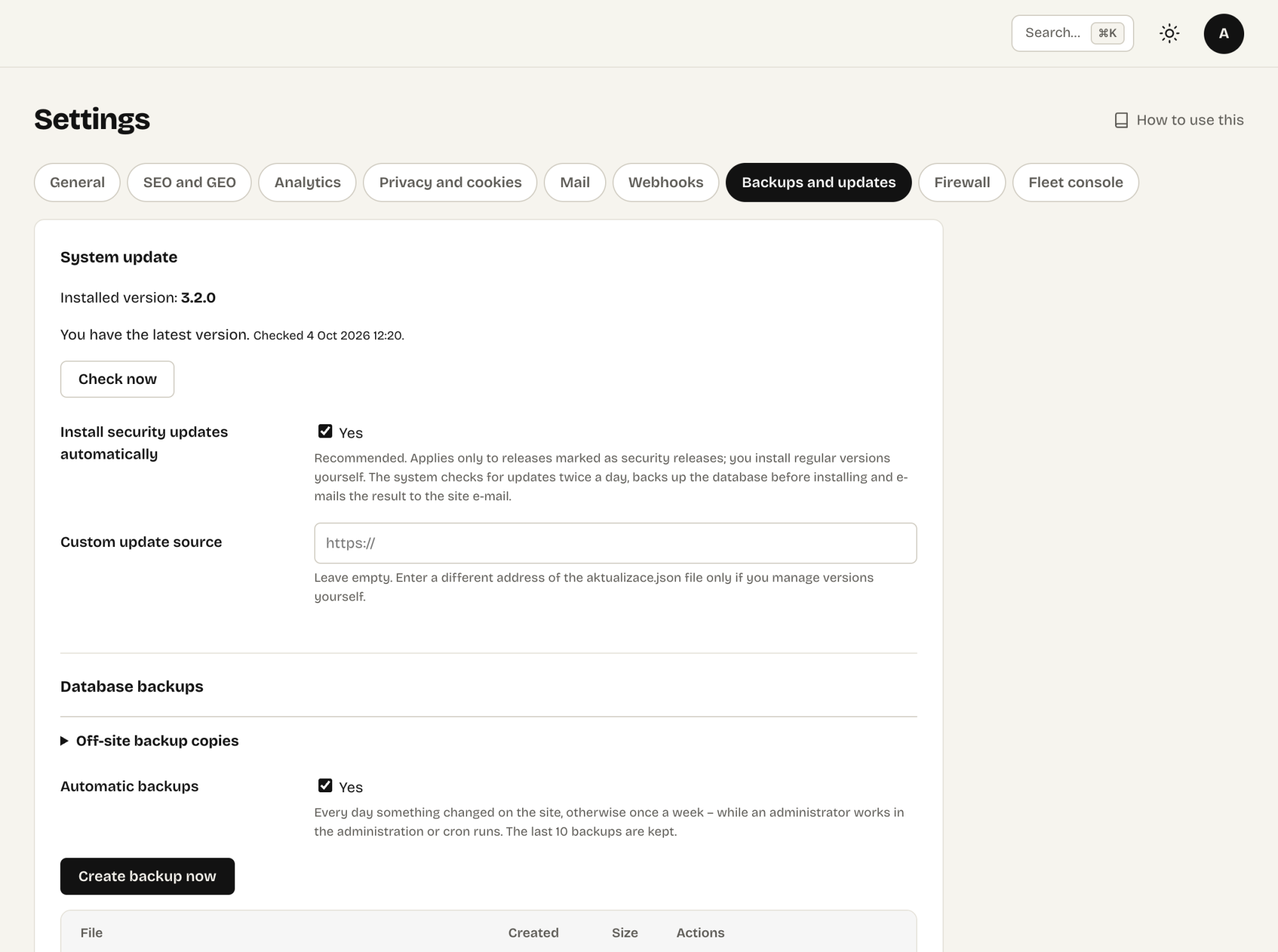
Settings → Backups and updates
Backups
Settings → Backups and updates.
- Automatic backups – every day something changed on the site, otherwise once a week, while an administrator works in the admin or cron runs. The last 10 are kept.
- Off-site copies – off until you set a target: an FTP server with FTPS encryption or S3-compatible storage (Amazon S3, Backblaze B2, Wasabi, Cloudflare R2). A backup on the same disk does not protect you from losing the hosting, so set one up. Then each database backup uploads itself, encrypted.
- The media go along: the
media/folder is copied to the same place – only new and changed files, in the background, so even a large library gets there bit by bit. The tab shows whether the copy is complete. - A restore is checked first and rolled back if the backup is damaged.
Encrypted off-site copies
Since 3.28, Kaleta encrypts every database backup before it leaves your server for FTPS or S3 – with XChaCha20-Poly1305 (libsodium), or AES-256-GCM where PHP lacks sodium. The copy is named kaleta-….sql.gz.enc. Only your recovery key opens it: not your hosting, not the storage provider, not the authors of Kaleta. The key lives in a file on the server, outside the database, and never goes into a backup or an export.
- In Settings → Backups and updates click Show and save the recovery key.
- Copy it into a password manager, or click Download the recovery key (.txt).
- Tick I have saved the recovery key somewhere away from this server and click Confirm and start the off-site copies. After that the administration never shows the key again.
Until you confirm, off-site copies of the database are paused. System status, the Backups tab and an alert e-mail (at most once a week) say so. Backups on the server go on as before. The media folder is copied as it is, because it holds the site's public files.
If the recovery key is lost
- Without the key, an encrypted off-site backup cannot be restored – nobody can open it. Keep the key away from the server and hand it to your client with the site's records.
- While the site still runs, click Make a new recovery key and save it as above. Off-site copies wait until you confirm the new key. Copies uploaded before still open only with the old key.
- If the site lost its key file – after a move to another server, for example – but you still have the key, enter it under Recovery key and click Put back the recovery key. Kaleta accepts only the key this site confirmed.
Restoring after losing the hosting
- Install Kaleta on the new hosting with the same table prefix (
ka_unless you changed it). - Copy the
vault_keyline from the old site'sconfig.phpinto the new one, in place of the line the installer wrote. Without it, the connector secrets and whistleblowing reports in the backup cannot be read. - Upload the latest database backup from your FTPS or S3 copy over FTP into
storage/zalohy/– the encrypted.encfile as it is. - Copy the
media/folder from the same place into the root of the site. - In Settings → Backups and updates enter the recovery key under Recovery key and click Restore at that backup. A wrong key or a damaged file is refused before anything changes. Then sign in with the accounts from the backup.
On a new installation the key you entered becomes the site's key, so the off-site copies go on with it.
Updates
New versions are signed by the publisher. The site verifies the signature and every file before installing, backs up the database first and rolls back if anything fails. Releases marked as security updates can install automatically (recommended); other versions you install yourself on the same screen.
On the same screen you choose the update channel (since 3.8): Latest, the default, offers a new minor version every week; Stable offers security fixes and a move to a newer minor about once a month, after it has run on Latest. A site refuses update information older than what it has already seen.
Moving a whole site
To move a Kaleta site to another host – or to start every new project from an agency's starter site:
- On the old site, create Import and export → Export of the whole site and download the
.zip. - Install Kaleta on the new host and choose Start from an export in the installer – it creates an empty site.
- Sign in and upload the export in Import and export → Import from Kaleta (a large one over FTP into
storage/import/). - Check the preview and confirm. A database backup is made first, then the import runs in batches on its own.
Pages, news, collections, components, shared classes, site parts, menus, pop-ups, redirects, the media library with its files, the site name, company details, languages and the look come along. Every row keeps its number, so links between pages, menus and components stay valid, and every build goes through the same checks as a save in the builder. User accounts, passwords, keys, tokens and the mail and backup settings are never in an export – the new site keeps its own. The import works only on an empty site.
One page
Pages → Export downloads one page with the shared classes and components it uses. Pages → Import on another site creates the page hidden, adds only the missing classes and components and reuses a component imported before.
Your content outside Kaleta
The site export is an open format – JSON with a description of every table, plus the media – so your content never stays locked in. Enquiries, subscribers, customers and deals are never exported.