
Page builder
Page builder basics.
The canvas is the real page. Add elements and ready-made sections, move them by dragging, edit text in place and publish when you are ready.
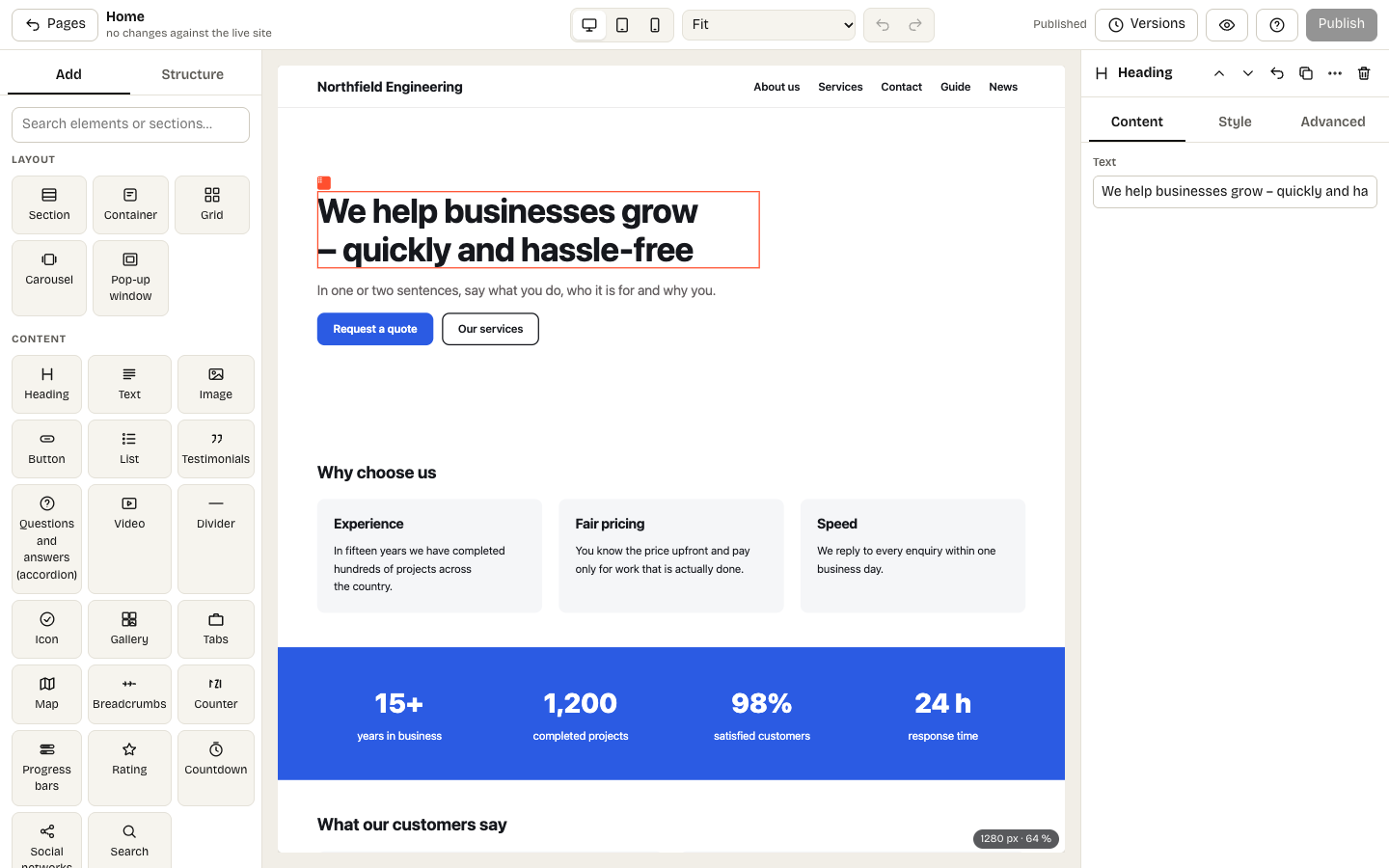
The builder: Add and Structure on the left, the real page in the middle, properties on the right
Open the builder from Pages → Builder, or click Edit here on the site while signed in. In the middle is the canvas – the real page, on the left the Add / Structure panel, on the right the properties of the selected element.
Adding and moving
- Add: click an element or a ready-made section in the Add panel, or drag it onto the canvas. A blue line shows where it will land; a frame means inside a container. Hover over a ready-made section to preview it.
- Move: drag the ⠿ handle of the selected element, or drag it in the Structure panel. On a touch screen open More actions in the panel header, choose Move by tapping the target and then tap the place where the element belongs.
- Text: double-click a heading or text to edit it right on the canvas; longer edits go in the Content panel. Section headings (h2, h3) in a Text element get an anchor automatically, so you can link to them – for example
/services#pricing.
Saving and publishing
Changes save continuously as a draft – visitors see the published version until you press Publish. Discard changes restores the published version and Versions lists the last 20 publications.
Before publishing, a check flags buttons without links, images without descriptions, a missing main heading and low text contrast. If someone else edits the page at the same time, the editor offers to load their version or overwrite it.
Sharing a draft
Share in the top bar creates a link to the draft for a colleague or a client. It opens without signing in, is valid for 1, 3 or 7 days and search engines do not index it. The link shows the draft as it is when someone opens it – including changes you make later.
Shortcuts
| Keys | Action |
|---|---|
| Ctrl+Z / Ctrl+Shift+Z | Undo / redo |
| Ctrl+D | Duplicate |
| Ctrl+C / Ctrl+V | Copy and paste – also between pages |
| Delete | Remove the element |
| Esc | Select the parent element |
| ? | Help, including the editor tour |
Next to the device switch you can preview a wide monitor (1920 px) or zoom to 50–100 %.