
Collections and search
Collection lists and item pages.
Show items anywhere with the Collection list element – sorted, filtered, with filter buttons and pages – and design the item page in the builder.
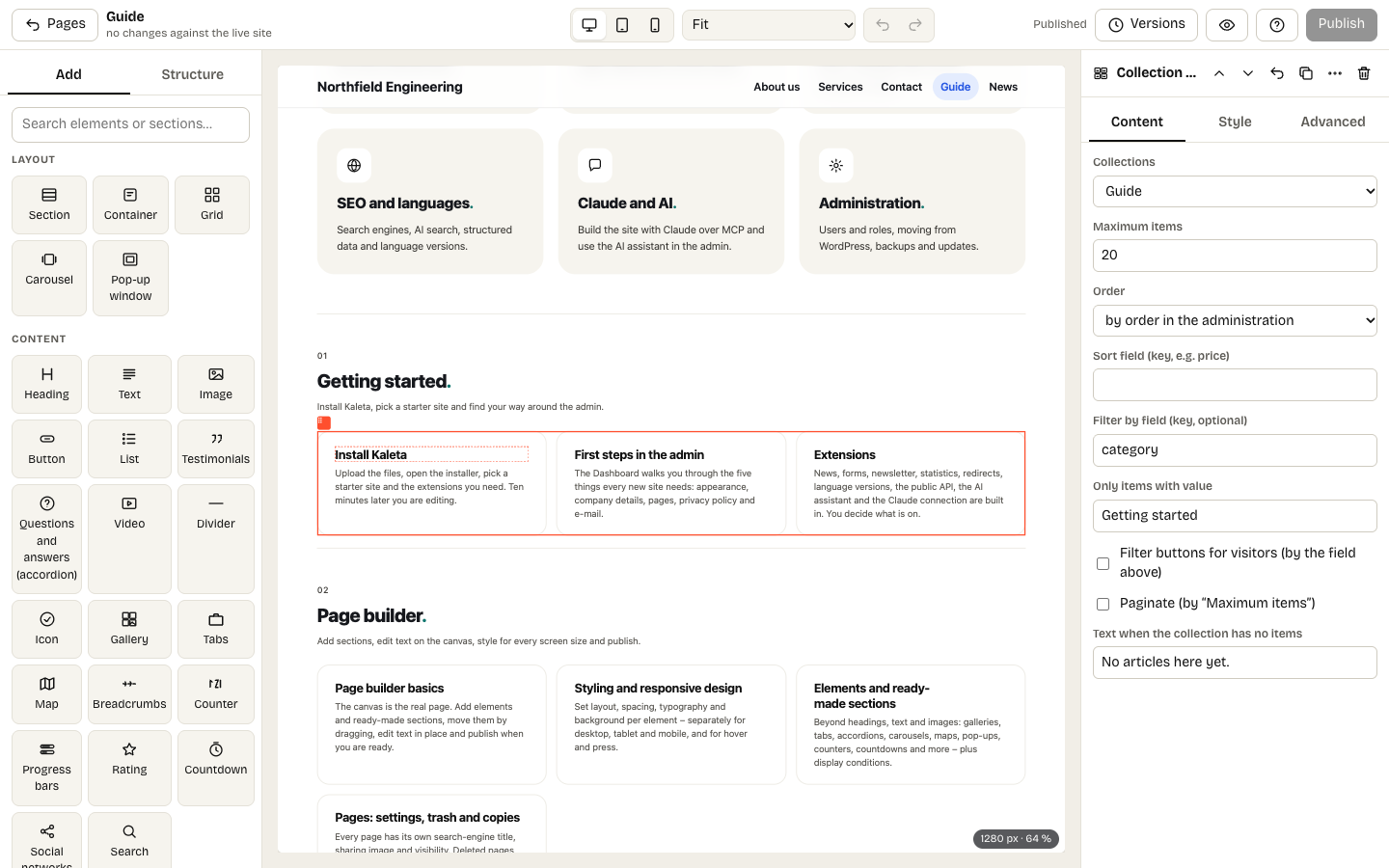
A Collection list selected in the builder, with its settings and the available tags
The Collection list element
In the builder insert a Collection list (group Dynamic) and pick the collection in the Content panel. Its inside is the template of one card – everything in it repeats for each item.
Put tags into texts, images and links inside: {{nazev}} for the name, {{url}} for the item page, and your own fields such as {{photo}} or {{price}}. Select any element inside the list and its Content panel shows the tags of the collection. Until the collection has items, the editor shows a sample card with the field labels.
| Setting | What it does |
|---|---|
| Maximum items | 1–100 items; with pagination, the number per page. |
| Order + Sort field | By the order in the administration, by name, newest first, or by a field ascending or descending (numbers sort as numbers). |
| Filter by field + Only items with value | A fixed filter: for example only items whose category is Design. |
| Filter buttons for visitors | Buttons for visitors with every value of the filter field (up to 30, alphabetical) plus All. |
| Paginate | Page links under the list. |
| Text when the collection has no items | What visitors see when there is nothing to show. |
Filter buttons and page links are ordinary links – they work without JavaScript and can be shared. A page can hold several lists; each keeps its own filter and page.
Tip: to group items, place several lists under their own headings, each with a fixed filter – that is how the category sections of this guide are built.
Style the cards with classes: elements inside a list repeat, so their own style is applied through a class automatically. A whole card can be a link – set Whole container as a link of the card container to {{url}}.
Item pages and the detail template
With Item pages on, every visible item has its own address /collection/item. Design that page in the builder via Detail template in the collection. It starts with the name, image and all fields; use the same tags as in lists and add a Breadcrumbs element for the path back – its collection level links to the page with the same address as the collection, if there is one (here /guide).
Search engines get a description from the first longer or formatted text field and a sharing image from the first image field. Item pages are in the sitemap, in llms.txt and in site search.
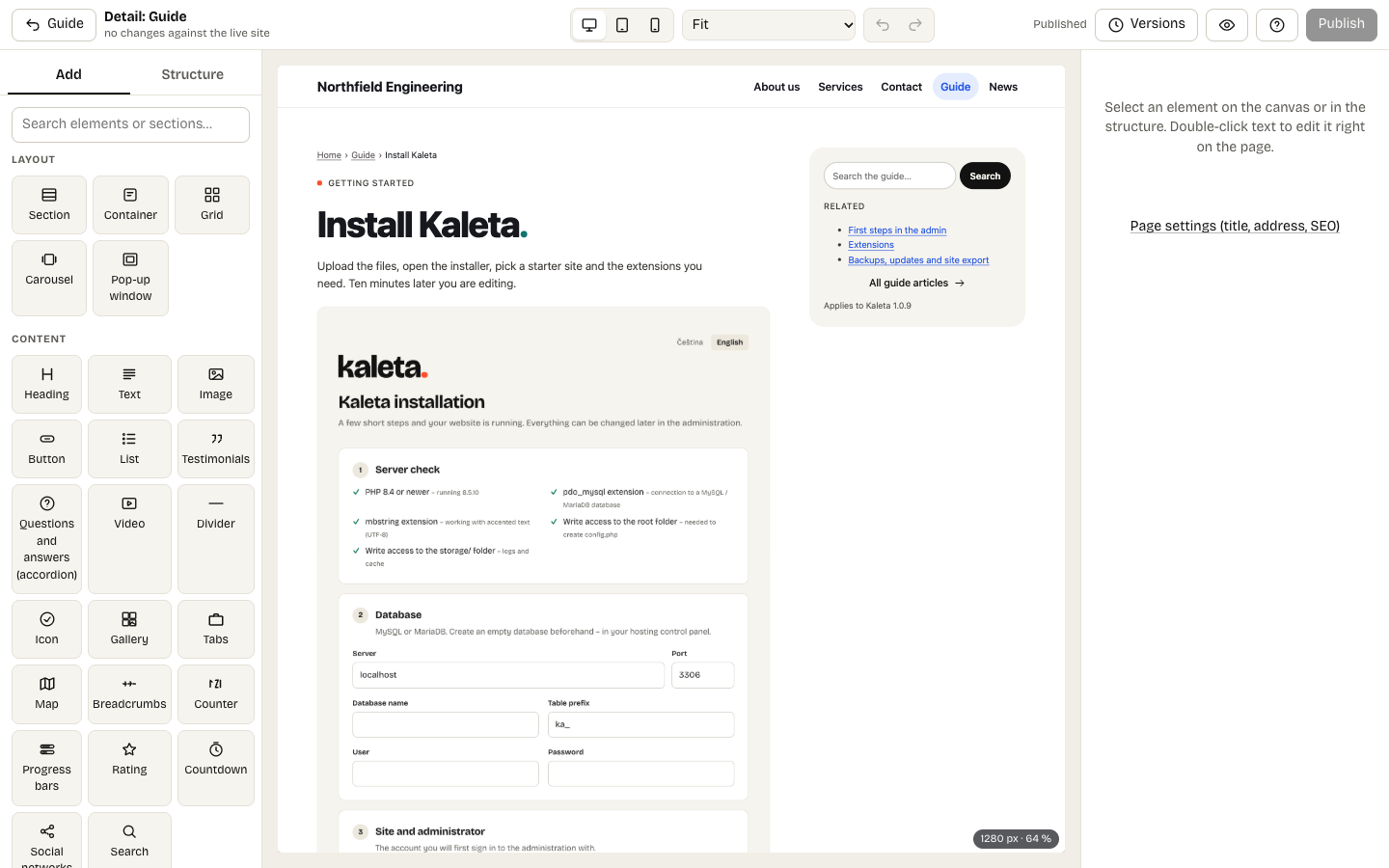
The Detail template of a collection in the builder